
Awin Affiliate Network support added in Auto Affiliate Links
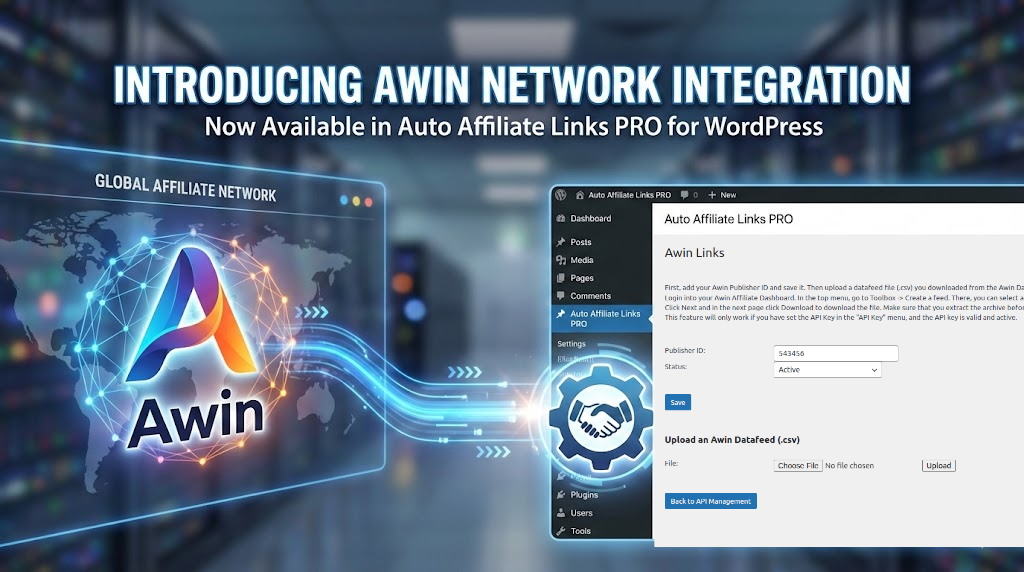
We are happy to announce a new update for the Auto Affiliate Links plugin. You can now import affiliate links directly from the Awin network.
This update allows you to use product feeds from Awin to automatically add links to your content, helping you manage your affiliate marketing more efficiently.
What is Awin?
Awin is a global affiliate network that connects publishers (website owners) with advertisers. It is a popular platform that allows you to partner with many well-known brands across different industries. By using Awin, you can earn commissions by promoting products relevant to your readers.
About Auto Affiliate Links
If you are new to our plugin, Auto Affiliate Links helps you automatically add affiliate links into your content. Instead of manually editing every post to add a link, the plugin scans your content for specific keywords and turns them into affiliate links automatically. This saves you time and ensures your old and new articles are always monetized.
How to Use Awin with Auto Affiliate Links
Setting up Awin is a little different than other networks because it involves uploading a specific file. Here is a simple, step-by-step guide on how to do it.
Step 1: Generate your Datafeed in Awin
First, you need to get the list of products (the datafeed) from your Awin account.
- Log in to your Awin Dashboard.
- In the top menu, go to Toolbox and click on Create a feed.
- On this page, you can select which advertisers, categories, and options you want to include in your feed.
- Click Next.
- On the following page, click Download to save the file to your computer.
Important: The file you download will likely be an archive (a
.zipor.gzipfile). You must extract this archive on your computer before using it. The plugin needs the.csvfile inside the archive, not the archive itself.
Step 2: Upload the Feed to Auto Affiliate Links
Once you have your extracted .csv file, you can upload it to your WordPress site.
- Go to your WordPress Admin panel.
- Navigate to the Auto Affiliate Links dashboard.
- Click on API Management.
- Look for the “Configure Awin Module” button and click it.
- On this screen, you will see an option to upload a file. Upload the extracted
.csvfile here.
Step 3: Confirmation
After the upload finishes, you should see a message confirming the process was successful. You will also see a list of the links that have been added to your system.
From this screen, you can manage your import. You have the option to delete links one by one if they don’t fit your content, or delete all of them at once if you need to start over.
We hope this new feature helps you expand your affiliate earnings. If you have any questions about the Awin integration, please use the contact form on our website.