
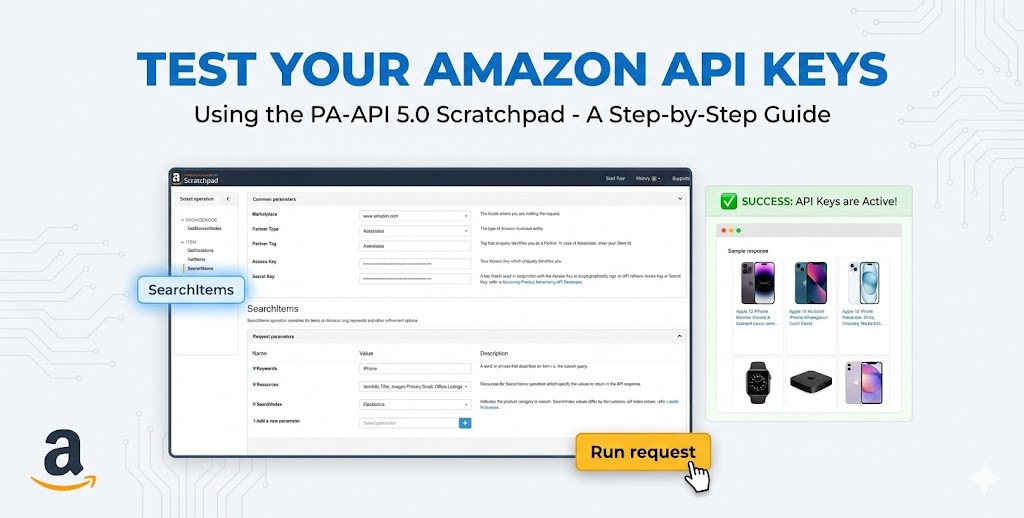
If you are using Amazon affiliate plugins (like Auto Affiliate Links) or custom scripts, you rely on the Amazon Product Advertising API (PA-API 5.0) to fetch product data.
However, a common frustration for many affiliates is seeing “API Error” messages or products failing to load. Is it the plugin? Is it the server? Or are the API keys themselves inactive or incorrect?
The best way to find out is to test your keys directly at the source. Amazon provides a free debugging tool called the Scratchpad. If your keys work here, they work everywhere. If they fail here, the issue is with your Amazon Associates account or credentials.
Here is a step-by-step guide on how to use the Amazon Scratchpad to test your API keys using the “SearchItems” operation.
Step 1: Access the Scratchpad
First, navigate to the Amazon PA-API 5.0 Scratchpad.
Note: If you are signed up for a specific marketplace (like Amazon UK or Amazon Germany), make sure you select the correct locale in the top-right corner or the “Marketplace” dropdown later.
Step 2: Select the “SearchItems” Operation
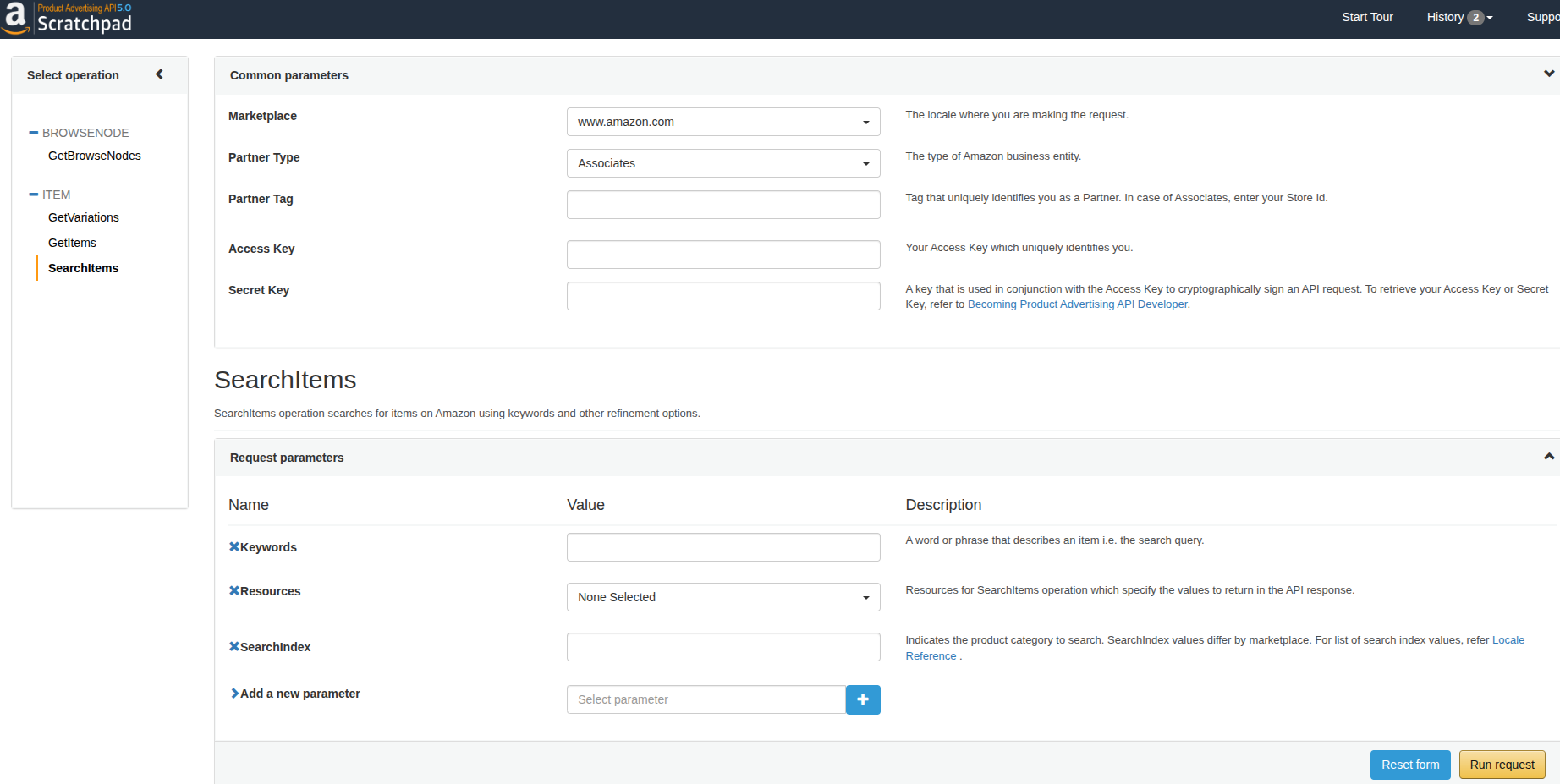
On the left-hand sidebar, you will see a list of available operations.
- Click on ITEM.
- Select SearchItems.
This operation simulates a standard product search, which is exactly what most affiliate plugins do to find products for your site.
Step 3: Enter Your Credentials (Common Parameters)
The first section you see in the main window is “Common parameters.” This is where you input your identity.
- Marketplace: Select the Amazon region your keys are associated with (e.g.,
www.amazon.comfor the US). - Partner Type: Leave this as Associates.
- Partner Tag: Enter your Amazon Associates Store ID (usually ends in
-20or-21). - Access Key: Paste your Access Key ID.
- Secret Key: Paste your Secret Access Key.
Important: Ensure there are no empty spaces before or after your keys when you paste them.
Step 4: Configure the Search (Request Parameters)
Scroll down to the “SearchItems” section. This is where you tell Amazon what you are looking for.
- Keywords: Enter a simple product name to test, like
iPhoneorRunning Shoes. - Resources: This is often overlooked but crucial. Click the dropdown and select the data you want to see. For a basic test, check boxes like:
ItemInfo.TitleImages.Primary.SmallOffers.Listings.Price- If you leave this as “None Selected,” you might get a successful connection but zero data displayed.
- SearchIndex: Type
Allto search all categories, or specify a category likeElectronics.
Step 5: Run the Request
Click the yellow Run request button at the bottom of the page.
How to Interpret the Results
Once you run the request, scroll down to the bottom of the page to see the output. You will see several tabs (Rendered Response, JSON Response, etc.).
✅ Success: If you see a list of products appearing in the “Rendered Response” tab, congratulations! Your API keys are active, correct, and fully functional. If your plugin is still not working on your website, the issue is likely a plugin setting or a server firewall, not the keys themselves.
❌ Failure (Common Errors): If you see an error message in red, here is what it usually means:
InvalidClientTokenId: The keys you copied are wrong or deleted. Generate new credentials in your Amazon Associates dashboard.AccessDenied/AccountNotActive: This is the most common issue for new users. It means your API access is not yet active. Amazon requires you to make 3 qualifying sales within 180 days using standard text links before they grant you API access.TooManyRequests: You are making requests too fast. If you just got your keys, your throttle limit is very low (1 request per second).
Summary
The Amazon Scratchpad is the ultimate “truth serum” for your affiliate credentials. Before spending hours debugging your WordPress site, always run a quick SearchItems test here. It saves time and tells you exactly where the problem lies.
Disclosure: This article was generated using AI, but it has been human reviewed.